Participants who registered through various of Active products will be prompted to create an Active Account at the end of the registration. The personal information will be recorded based on information registrant entered during registration.
Below are instructions to update your ACTIVE.com user account information:
Note: If you want to change your password, please click Change Password.
4. Edit or update any of the following fields, as needed
- First Name
- Last Name
- Display name
- Gender
- Date of birth
- Phone Number
- Country
- Address
- Address line 2
- City
- State
- ZIP
Note: Display name cannot contain blank spaces.
Note: Updating Email request please Contact Us
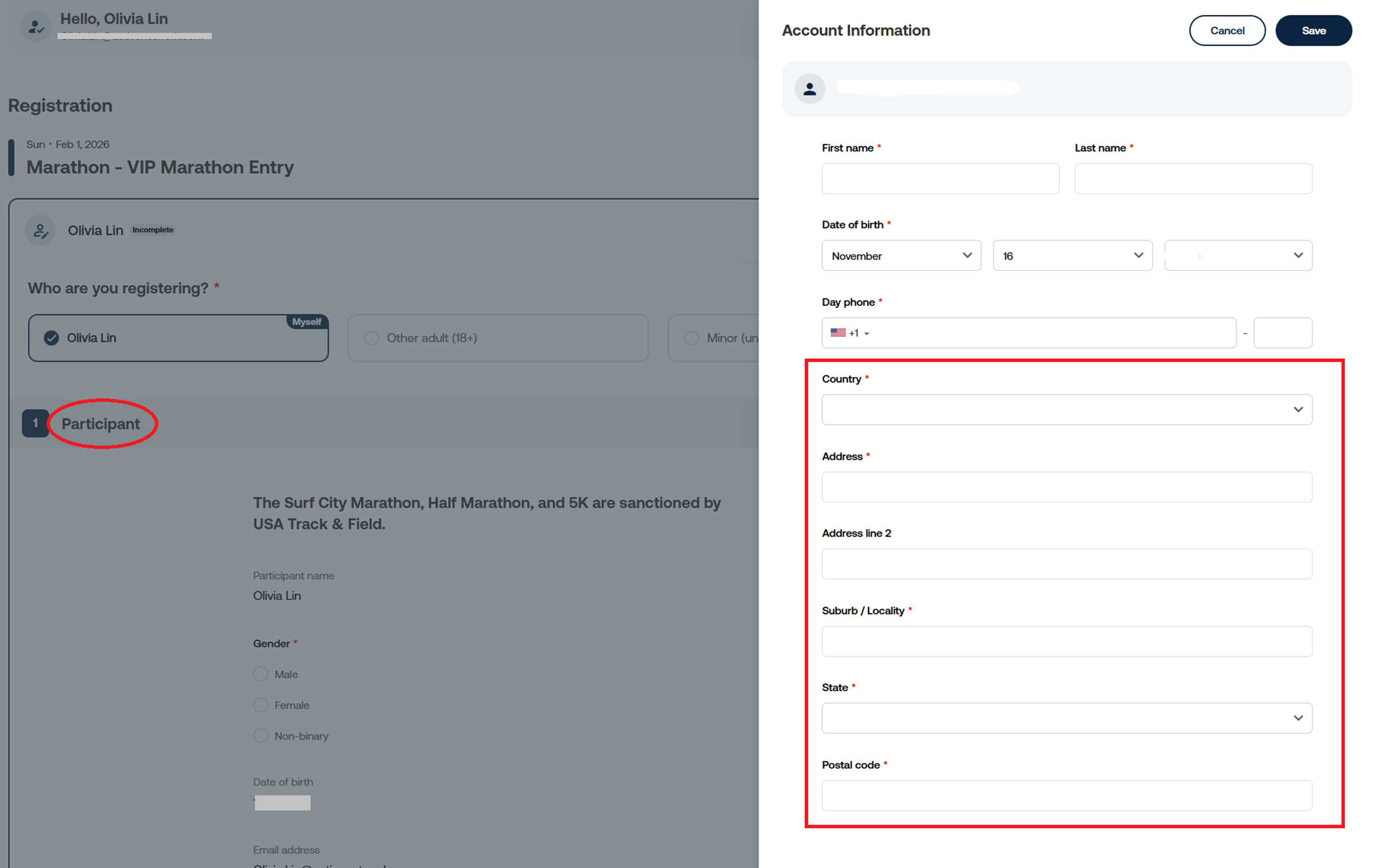
Note: For contact address, if this registrant has already registered in this organization's events before with Address A, Address A will still be used automatically in the next registration in the same organization even though the contact address has been updated from ACTIVE.com. The registrant can click Edit button next to Participant to change contact address during the registration. Please note: Any changes made to your participant information will automatically update your account details, impacting all current, past, and future registrations.
Below are instructions to update your ACTIVE.com user account information:
1. Login to ACTIVE.com via https://passport.active.com
2. Navigate to View Profile via user dropdown menu
3. Click My Profile
2. Navigate to View Profile via user dropdown menu
3. Click My Profile
Note: If you want to change your password, please click Change Password.
4. Edit or update any of the following fields, as needed
- First Name
- Last Name
- Display name
- Gender
- Date of birth
- Phone Number
- Country
- Address
- Address line 2
- City
- State
- ZIP
Note: Display name cannot contain blank spaces.
Note: Updating Email request please Contact Us
Note: For contact address, if this registrant has already registered in this organization's events before with Address A, Address A will still be used automatically in the next registration in the same organization even though the contact address has been updated from ACTIVE.com. The registrant can click Edit button next to Participant to change contact address during the registration. Please note: Any changes made to your participant information will automatically update your account details, impacting all current, past, and future registrations.