Customize the confirmation email that participants receive after registering. Complete this step after Login to Swim Manager and completing Waivers during program setup.
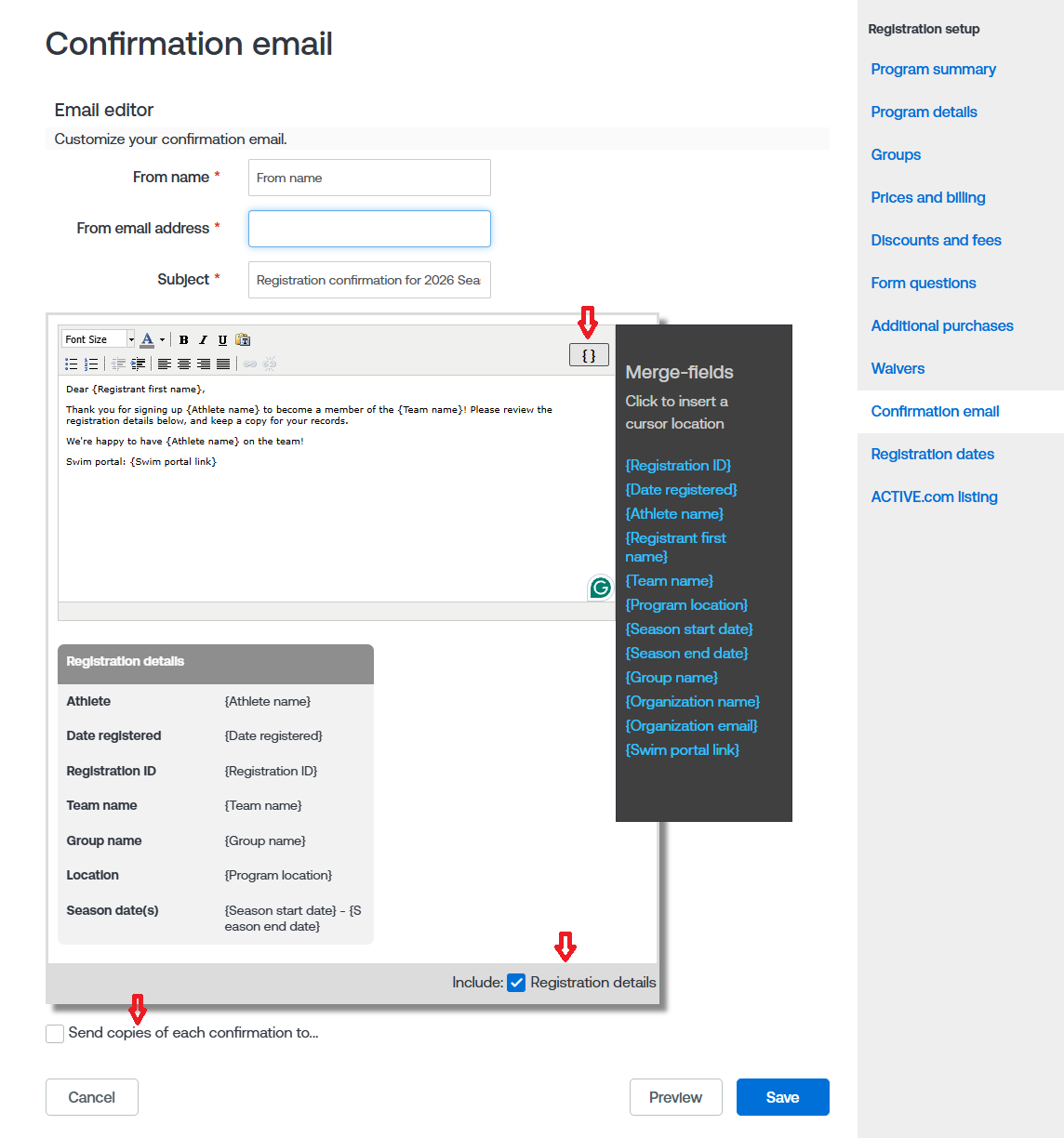
- In the From name field, confirm or update the sender name.
- Note: This name appears as the sender when athletes receive emails from the organization.
- In the From email address field, confirm or update the email address.
- Note: The default email address is pulled from Account > Organization Email address, under Primary contact.
- In the Subject field, confirm or update the subject of the confirmation email.
- Note: The default subject is Registration confirmation for [Program Name].
- In the message box, enter a customized message using the rich-text editor. The editor supports basic font formatting and hyperlinks.
- Note: HTML is not supported.
- To add a merge field, click the Merge-fields icon {}, then select the field you want to include.
- Example: Selecting {Group name} displays the group the athlete registered for.
- Check or uncheck Include Registration details to show or hide the registration details in the confirmation email.
- To send a copy of each registration confirmation to administrators, select Send copies of each confirmation to..., then enter up to five administrator email addresses.
- Click Preview to view an example of the confirmation email.
- Click Save to save the confirmation email settings and proceed to Registration Dates.