When using Pro Network (multi-user feature), three issues can occur when logging in. For all three issues, follow steps below:
Issue 1: Admin user forgot password
Issue 1: Admin user forgot password
- Note: If non-admin user forgot password, admin user can go to File > Network Administration to change passwords
- Note: If non-admin user is shown as logged in when not, admin user can go to File > Network Administration, select Remove all logged in users except Admin, and click Done
- Close software
- Open Control Panel (Windows Start > Control Panel)
- Note: For Windows 7, 8, or 8.1, set View By to Small/Large Icons
- Note: For Windows Vista, select Classic View
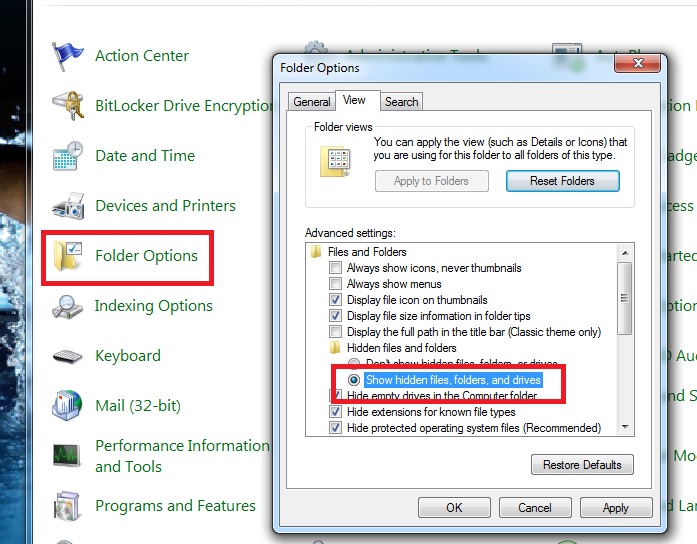
- Select Folder Options
- Go to View tab, select Show hidden files, folders, and drives, click Apply
- Open Windows Explorer (Windows Start > Computer) and go to location of database file
- Note: Should see two files: .mdb and .pxx. .Mdb is database file. .Pxx contains login records and any passwords and should be about 1 KB
| Software | Database Location |
| SWMM8 | C:\swmeets8 |
| SWTM8 | C:\TM5Data |
| TFMM6 | C:\tfmeets6 |
| TFTM4-2 | C:\TFTM3Data |
- Right click .pxx file and select Delete
- Note: Make very sure you DO NOT DELETE .MDB FILE as it has all of your database's information on it
- Open software and click OK on login screen without entering anything
- Note: Any passwords will need to be re-setup in software. To do so, admin user should go to File > Network Administration